Connect Heeler through ZeroTier
Use this guide to reach the Mac that runs herdr through a private ZeroTier network. The Mac runs the ZeroTier One app. Heeler joins the network by itself, so the phone needs no ZeroTier app or VPN.
You need a Heeler version with Settings > Overlay Networks.
Before you start
- On the Mac, finish Prepare the Host: Remote Login, herdr, a sign-in method, and the Mac's SSH fingerprint.
- You need admin access to the Mac and a ZeroTier Central account.
- Keep the Mac awake during setup.
ZeroTier shows several IDs. You need two: the 16-digit network ID for Heeler's network form, and the Mac's managed IP (an address like 10.147.17.2) for the Host form.
1. Central: create a private network
ZeroTier has two consoles. Accounts created after 5 November 2025 use New Central; older accounts use Legacy Central. Your browser's address bar shows which one you are in.
| Console | Create a network | Authorize a device |
|---|---|---|
| New Central | Use your default network, or Networks > New Network | In Member Devices, find the node ID and choose Actions > Authorize |
| Legacy Central | Networks > Create A Network, then open it | In Members, find the node ID under Address and check Auth? |
Keep the network private and keep automatic IPv4 addresses on. If its address range matches your home or office network, pick another range. Copy the network ID.
2. Mac: install ZeroTier One and join
-
Install ZeroTier One from the download page and accept the macOS prompts.
-
Click the ZeroTier icon in the menu bar, choose Join New Network…, and paste the network ID. Or run this in Terminal, with your network ID in place of
YOUR_NETWORK_ID:Terminalsudo zerotier-cli join YOUR_NETWORK_ID sudo zerotier-cli infoinfoprints the Mac's node ID. -
In Central, authorize the Mac's node ID and give it a name.
-
Check the result:
Terminalsudo zerotier-cli listnetworks
It worked if the network shows OK PRIVATE and an address such as 10.147.17.2/24. The Mac's address is the part before the /, here 10.147.17.2. ACCESS_DENIED means the Mac is not authorized yet.
3. Heeler and Central: join and authorize the app
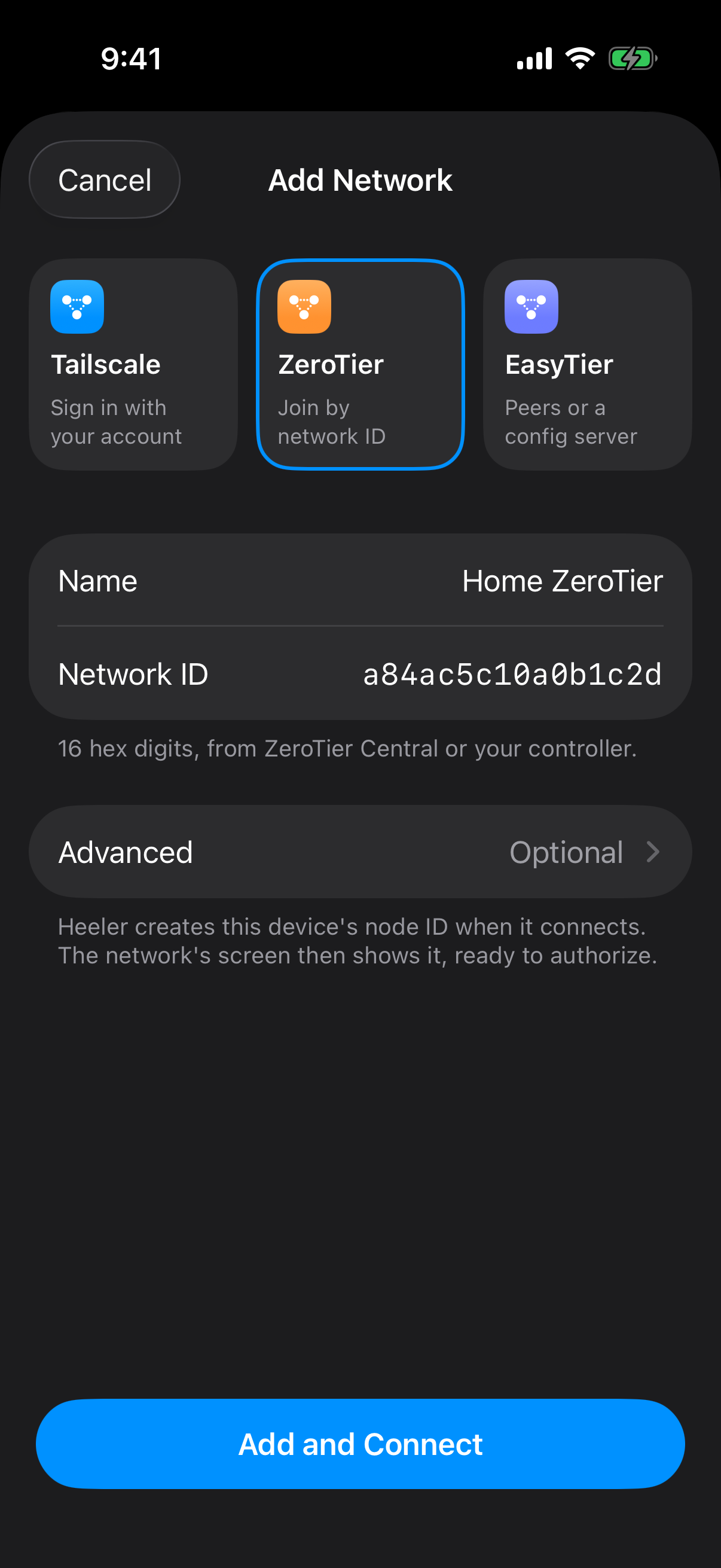
- In Heeler, open Settings > Overlay Networks > Add Network and choose ZeroTier.
- Enter a Name, paste the network ID into Network ID, and leave Advanced as it is.
- Tap Add and Connect. The network's screen shows Waiting for authorization and Heeler's node ID under This device.
- In Central, authorize Heeler's node ID. Authorizing the Mac does not authorize Heeler. Heeler connects on its own once it is authorized.
Open ZeroTier Central opens Legacy Central. For New Central, go to central.zerotier.com yourself. If you authorize from the phone's browser, turn the network's switch back on when you return to Heeler.
It worked if Heeler shows Connected with its own address, and Central lists both devices as authorized.
4. Heeler: add the Mac as a Host
In Hosts > Add Host, tap Add Route under Routes and follow Connect from Heeler with these values:
| Field | Value |
|---|---|
| User | Your Mac username |
| Network (in Route) | The ZeroTier network you just connected |
| Address (in Route) | The Mac's managed IP, without the / part |
| Port (in Route) | The Mac's SSH port, normally 22 |
| Jump Host (in Route) | Blank |
| Authentication | The sign-in method you picked |
Type the IP address, not a name or an ID from Heeler's network screen. Save the route, then save the Host.
Check the fingerprint, let the Host checks finish, then verify the connection.
Troubleshooting
| Problem | What to do |
|---|---|
| Add and Connect stays grey | Network ID needs the 16-digit network ID, not a 10-digit node ID. Red text under Advanced means a Moon entry is incomplete. |
Heeler says the network does not exist, or the Mac shows NOT_FOUND | Copy the network ID again from Central, then edit the network in Heeler or join again on the Mac. |
Waiting for authorization, or ACCESS_DENIED on the Mac | Authorize that device's node ID on this network. Each device needs its own authorization. |
REQUESTING_CONFIGURATION on the Mac, or Heeler never gets an address | Check the network ID and the internet connection. |
| Authorized, but no IP address | Turn on automatic IPv4 addresses for the network in Central. |
PORT_ERROR on the Mac | Allow ZeroTier in System Settings > Privacy & Security (or Login Items & Extensions), then restart the Mac. See ZeroTier's macOS fix. |
| Connected, but SSH fails | Check that the Host uses this network and the Mac's managed IP. Then check Remote Login, user, port, firewall, and your key or password. |
| No Members Yet | Normal until Heeler has talked to another device. Connect the Host. |
| The network stops after you leave Heeler | Expected, about 20 seconds after you leave. Hosts reconnect it when you return. |
Advanced: Planet and Moon settings
Leave these empty for ZeroTier Central. If you run your own ZeroTier controller, use Import Planet File… and Add Moon with the files and IDs your operator gives you, and authorize Heeler there.
Privacy: Heeler shares a set of root servers across all ZeroTier networks it has joined, combining their configured roots with ZeroTier's own roots. Address lookups and relayed traffic can use any of these roots. A self-hosted root may learn which ZeroTier addresses your device looks up for other networks, and ZeroTier's roots may learn those of your self-hosted network. Only add roots whose operators you trust; separate network entries do not isolate these lookups.
Stop using the network
Turn off the network's switch to disconnect it; its settings stay. To remove it, move or remove its Hosts first, then delete the network. If you delete your last ZeroTier network, you'll need to authorize Heeler again the next time you add one.
To leave the network on the Mac:
sudo zerotier-cli leave YOUR_NETWORK_IDDisconnecting or deleting does not revoke access. To revoke it, deauthorize the device in Central.
Commands and console labels were checked against ZeroTier's documentation on 2026-10-09.