
Connect Heeler through EasyTier
EasyTier puts Heeler and your Mac on a private network, so Heeler can reach the Mac over SSH. Heeler joins the network by itself, so the phone needs no EasyTier app or VPN.
You need a Heeler version with Settings > Overlay Networks.
There are two ways to set up the network in Heeler:
| Mode | What you do in Heeler | Best for |
|---|---|---|
| Network | Type the network name, secret, and Mac address yourself | Most people |
| Config Server | Enter a server URL; an admin assigns the network from a web console | Devices managed by someone else |
Both modes work on your home network. To connect over cellular or another outside network, see Reaching a Mac outside the LAN.
Before you start
- Finish Prepare the Host (Remote Login, herdr, and a sign-in method).
- Find your Mac's local IP address in System Settings > Network. The examples use
192.168.1.20. - Choose a network name and a strong secret. The secret is not your SSH password.
The examples use these values:
| Value | Example |
|---|---|
| Network name | heeler-home |
| Mac's EasyTier address | tcp://192.168.1.20:21010 |
| Mac's address inside the network | 10.144.144.2 |
| Heeler's address inside the network | 10.144.144.3 |
Network: connect directly to the Mac
1. Install EasyTier on the Mac
-
Download the ZIP from the EasyTier v2.6.4 release:
easytier-macos-aarch64-v2.6.4.zipfor Apple silicon oreasytier-macos-x86_64-v2.6.4.zipfor Intel. -
Extract it in Downloads, then run this in Terminal (on an Intel Mac, change
aarch64tox86_64):TerminalET_BIN="$HOME/Downloads/easytier-macos-aarch64" "$ET_BIN/easytier-core" --versionExpect
2.6.4. -
macOS blocks each EasyTier program the first time it runs. Open System Settings > Privacy & Security, click Open Anyway for that program, and run the command again. Do not turn off Gatekeeper.
2. Start EasyTier on the Mac
In the same Terminal window as step 1, run this. Replace 192.168.1.20 with your Mac's IP address, and type your secret when asked.
read -rs 'ET_NETWORK_SECRET?EasyTier network secret: '
printf '\n'
export ET_NETWORK_SECRET
ET_LISTEN_HOST=192.168.1.20

"$ET_BIN/easytier-core" \
  --network-name heeler-home \
  --hostname heeler-mac \
  --ipv4 10.144.144.2/24 \
  --listeners "tcp://$ET_LISTEN_HOST:21010" \
  --rpc-portal 127.0.0.1:15888 \
  --no-tun \
  --private-mode true \
  --disable-upnp \
  --disable-p2p \
--accept-dns false- If macOS asks about incoming connections, allow them.
- Leave this Terminal window open. EasyTier stops when you close it.
- Anyone who joins this network can reach SSH and other services that listen only on the Mac itself, so keep the secret private.
- Save the secret in your password manager; you will type it into Heeler next.
3. Add the network in Heeler
Open Settings > Overlay Networks > Add Network, choose EasyTier, and keep Network selected.
| Field | Value |
|---|---|
| Name | Home EasyTier |
| Device name | Any name, or leave the default heeler |
| Network name | heeler-home |
| Secret | The secret from the Mac |
| Peers | tcp://192.168.1.20:21010, with your Mac's IP |
| Advanced > Fixed IPv4 | 10.144.144.3/24 (optional; blank picks an address automatically) |
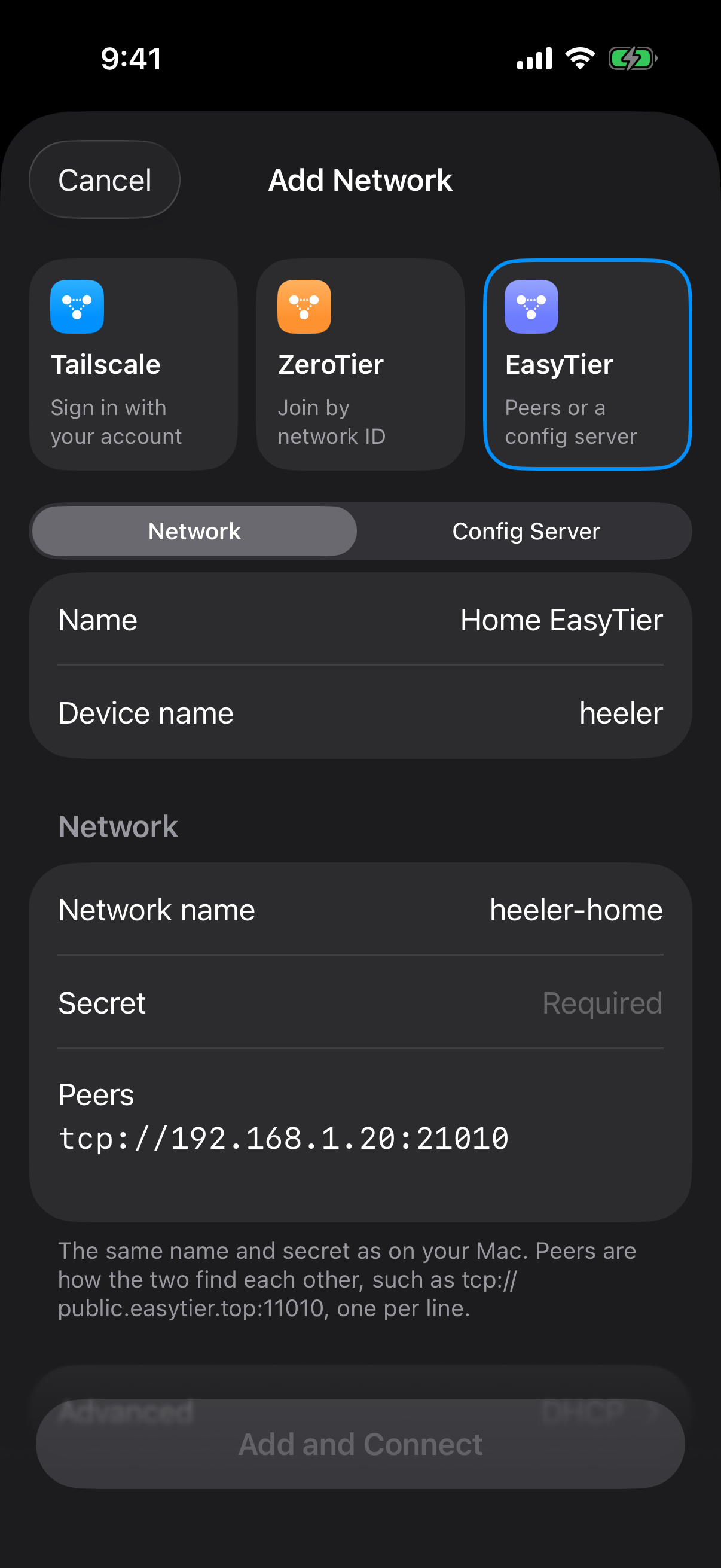
Tap Add and Connect. When the network shows Connected, your Mac appears under Peers at 10.144.144.2.
4. Add the Mac as a Host
Tap Add next to the Mac under Peers, or follow Connect from Heeler with Home EasyTier as the Network.
- Address:
10.144.144.2, port22 - User: your Mac username, with the sign-in method you picked
- Jump Host: none
Save. Trust the SSH fingerprint only if it matches the one from your Mac, then complete Verify the connection. For the cellular check, first follow Reaching a Mac outside the LAN.
Config Server: get the network from a web console
Use this when someone runs an EasyTier Config Server for you. They assign your phone a network, so you don't type the name and secret yourself. Your Mac still runs EasyTier as in Network step 2.
1. Get the server URL
Ask the server's admin for the configuration URL. It ends with your account name, for example tcp://192.168.1.20:22550/USER or wss://et.example.com/USER. It is not the web console's address.
Only use a server you trust: it can see the network secrets it hands out. Over the internet, use a wss:// URL.
Optional: run your own Config Server on your home network
After installing EasyTier on the Mac, run this in a new Terminal window (on an Intel Mac, change aarch64 to x86_64):
ET_BIN="$HOME/Downloads/easytier-macos-aarch64"
ET_WEB_DATA="$HOME/Library/Application Support/Heeler-EasyTier-Console"
mkdir -p "$ET_WEB_DATA"
chmod 700 "$ET_WEB_DATA"
umask 077

"$ET_BIN/easytier-web-embed" \
  --db "$ET_WEB_DATA/et.db" \
  --config-server-port 22550 \
  --config-server-protocol tcp \
  --api-server-port 11750 \
  --api-server-addr 127.0.0.1 \
  --web-server-addr 127.0.0.1 \
  --api-host http://127.0.0.1:11750 \
--console-log-level warn- Open
http://127.0.0.1:11750on the Mac and register an account. EasyTier also creates default accounts; change their passwords. - Your configuration URL is
tcp://192.168.1.20:22550/USER, with your Mac's IP and account name. - Port 22550 is open to your whole local network, so use this only on a network you trust.
This server works only on your home network. Making it reachable over the internet needs a wss:// address behind HTTPS, which this guide doesn't cover.
2. Register Heeler's device
- Open Settings > Overlay Networks > Add Network, choose EasyTier, then Config Server.
- Enter a Name that differs from any other network, such as
Home EasyTier Console. - Paste the configuration URL into Server.
- Give it a recognizable Device name, and leave Advanced at Encryption required.
- Note the Machine ID, then tap Add and Connect.
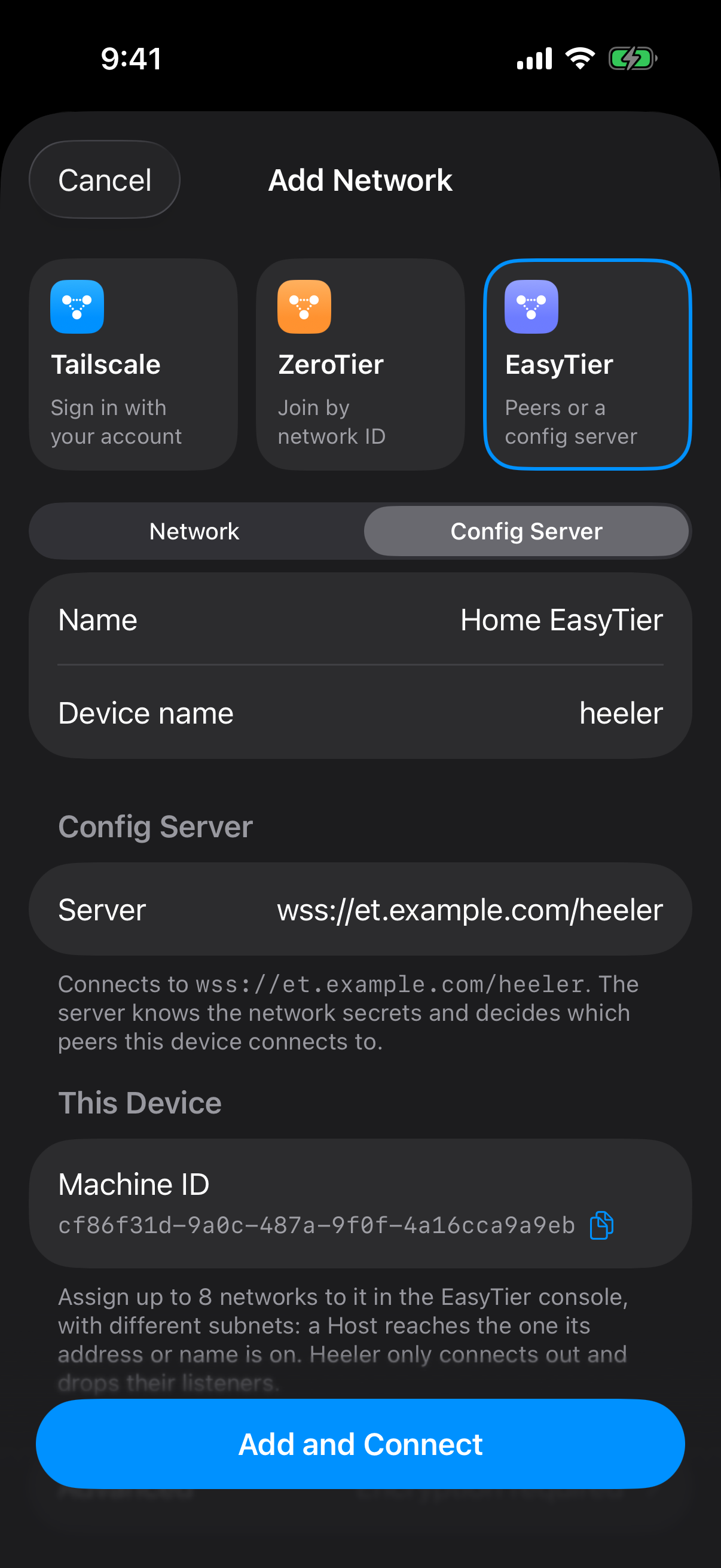
Heeler shows Connecting…, then Waiting for a network. In the web console, your phone now appears by its device name and Machine ID.
3. Assign a network in the console
In the console, open your phone's device page, choose Create Network, and fill in:
| Console setting | Value |
|---|---|
| Network Name | heeler-home |
| Network Secret | The Mac's secret |
| Virtual IPv4 | 10.144.144.4, with 24 after the slash; DHCP unchecked |
| Networking Method | Manual |
| Peer URLs | tcp://192.168.1.20:21010, or tcp://YOUR_VPS_IP:21010 if you use a relay |
| Advanced Settings > Disable Encryption | Leave unchecked |
Click Run Network. Saving alone does nothing until the network runs.
In Heeler, the network shows Connected with the Mac as a peer. Add the Mac as a Host at 10.144.144.2 (as in step 4 above), choosing this network, then complete Verify the connection.
Reaching a Mac outside the LAN
Over cellular, your phone cannot reach the Mac's home IP. A small Linux server (VPS) with a public IP can act as a relay: the Mac and the phone both connect out to it, so you don't need to open ports on your router. If your router already forwards TCP 21010 to the Mac, you can skip the relay and put your home's public IP in Peers instead.
1. Start the relay on the VPS
- Download the v2.6.4 Linux ZIP for your VPS (
easytier-linux-x86_64-v2.6.4.ziporeasytier-linux-aarch64-v2.6.4.zip) and extract it. - Allow inbound TCP 21010 in the VPS firewall and your cloud provider's security group.
- Run this in Bash, with
ET_BINset to the extracted folder (easytier-linux-x86_64oreasytier-linux-aarch64). Enter the same secret as before.
ET_BIN="$HOME/easytier-linux-x86_64"
read -r -s -p 'EasyTier network secret: ' ET_NETWORK_SECRET
printf '\n'
export ET_NETWORK_SECRET

"$ET_BIN/easytier-core" \
  --network-name heeler-home \
  --hostname heeler-relay \
  --listeners tcp://0.0.0.0:21010 \
  --rpc-portal 127.0.0.1:15888 \
  --no-tun \
  --private-mode true \
  --disable-upnp \
  --disable-p2p \
  --accept-dns false
The relay stops when you close the SSH session. Run it inside tmux for a quick test, or as a system service to keep it running.
The VPS holds your network secret, so use one only you control.
2. Connect the Mac to the relay
Stop the earlier Mac command with Control-C. In the same Terminal, run this instead, replacing YOUR_VPS_IP:
"$ET_BIN/easytier-core" \
  --network-name heeler-home \
  --hostname heeler-mac \
  --ipv4 10.144.144.2/24 \
  --peers tcp://YOUR_VPS_IP:21010 \
  --no-listener \
  --rpc-portal 127.0.0.1:15888 \
  --no-tun \
  --private-mode true \
  --disable-upnp \
  --disable-p2p \
  --accept-dns false
Keep it running.
3. Point Heeler at the relay
- Network mode: open the network, choose … > Edit, and change Peers to
tcp://YOUR_VPS_IP:21010. Leave Secret blank to keep it. - Config Server mode: change Peer URLs in the console to
tcp://YOUR_VPS_IP:21010. The configuration URL must also be reachable from outside your home network.
Your Host stays at 10.144.144.2, port 22; do not use the VPS address.
To test, turn off Wi-Fi on your phone and open the Host. You should get a working terminal over cellular.
Troubleshooting
| Problem | What to check |
|---|---|
| The Mac does not appear as a peer | Network name and secret match exactly; Peers has the right IP and port; the Mac command is still running; the Mac firewall allows it. |
| Connected, but SSH fails | On the Mac, run nc -vz 127.0.0.1 22. Check the Host's address, port, account, and key, and read the failing Host check. |
| Config Server stays on Connecting… | Check the full URL, including the account name at the end, and that your phone can reach the server. |
| Config Server stays on Waiting for a network, or shows Failed | Assign a network to this Machine ID and click Run Network. Keep Disable Encryption unchecked and turn off extras such as port forwarding, proxies, or an exit node. |
| An assigned network shows Not running | Read the reason shown next to it. |
| Port already in use on the Mac | An earlier EasyTier process is still running; stop it first. |
| Works on Wi-Fi, not on cellular | See Reaching a Mac outside the LAN. |
| Disconnected after leaving Heeler | Expected about 20 seconds after you leave. Hosts reconnect when you return; if a terminal stays disconnected, tap Reattach. |
Stop or remove this setup
- In Heeler: turn off the network's switch to disconnect and keep its settings. To delete it, first move or remove the Hosts that use it.
- On the Mac: press Control-C in each EasyTier Terminal window, then close the window.
- On the VPS: stop the relay the same way (or stop its service), and remove the TCP 21010 firewall rules.
To start EasyTier automatically on the Mac, see EasyTier's macOS service guide.
Commands were checked against EasyTier v2.6.4 on macOS in October 2026.