Connect Heeler through an Overlay Network
Use Tailscale, ZeroTier, or EasyTier to reach the Mac running herdr when you can't connect to it directly, for example from cellular. These guides cover a Mac and Heeler on iPhone or iPad.
You need a Heeler version with Settings > Overlay Networks.
Heeler joins the network by itself, so the phone needs no Tailscale, ZeroTier, or EasyTier app and no VPN setting. The Mac needs the provider's software, Remote Login (SSH), and herdr. You still log in to the Mac over SSH as usual.
Choose a setup
Prepare the Host below, then follow one provider guide. It sends you to Connect from Heeler when it is time to add the Host.
| Guide | You need | Away from home |
|---|---|---|
| Tailscale | A Tailscale account and the Tailscale app on the Mac | Works |
| Tailscale without a VPN on the Mac (advanced) | A Tailscale account and Homebrew | Works |
| ZeroTier | A ZeroTier Central account and ZeroTier One on the Mac | Works |
| EasyTier | No account; EasyTier on the Mac from Terminal | Needs a relay you run, such as a small VPS, or a Mac reachable from the internet (how) |
If you're new to this, start with Tailscale. For a Linux or Windows machine, install the provider's client from its own documentation, then follow the same Heeler steps. Windows also needs the Windows SSH and herdr setup.
These guides all join a network from inside Heeler. If you would rather run a VPN app on the phone and open no port anywhere, Cloudflare Tunnel reaches the Mac with Cloudflare's own client app. It needs a Cloudflare account, and it is not an Overlay Network under Settings.
Heeler setup screenshots
Go to Settings > Overlay Networks > Add Network. Each provider has its own form; EasyTier has two. Tap an image to see it full size.
| Tailscale | ZeroTier |
|---|---|
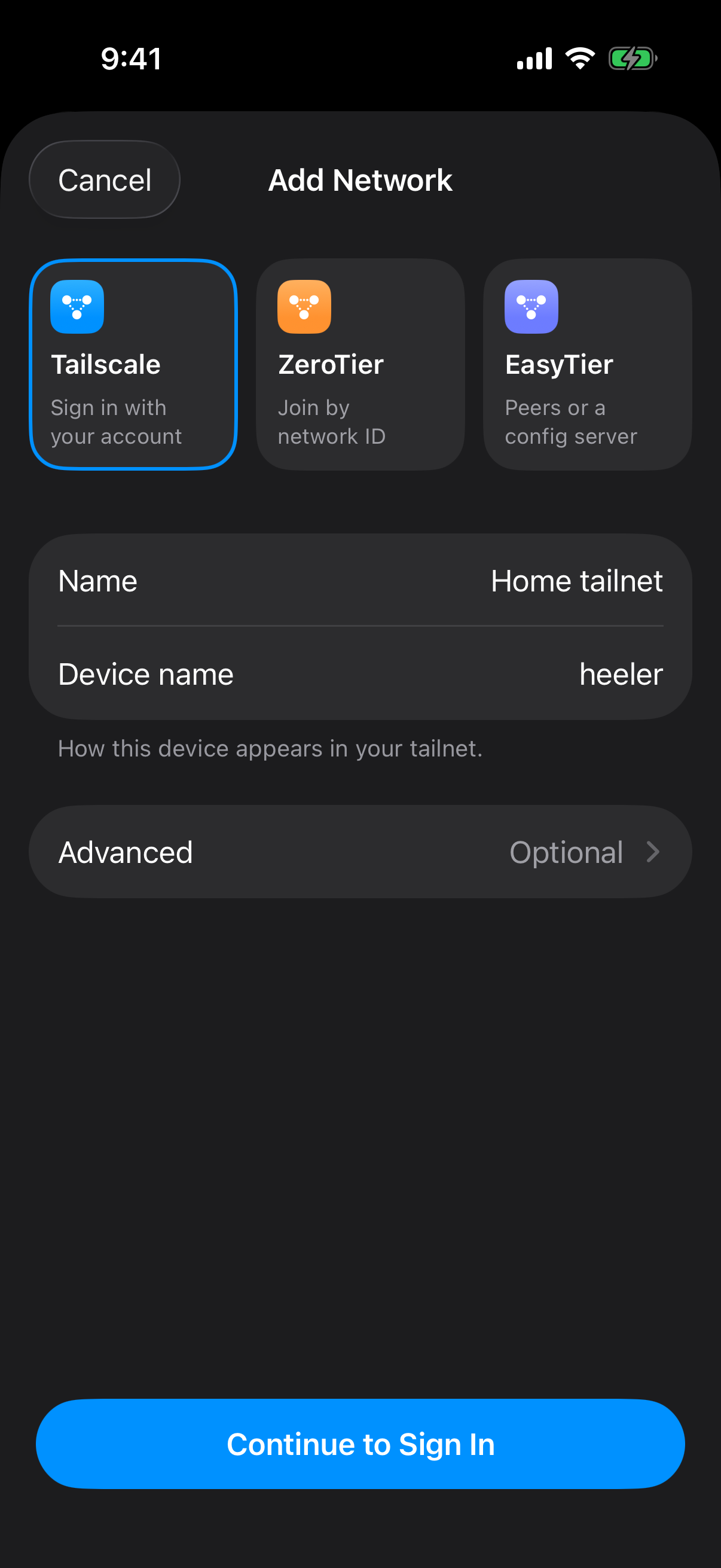 | 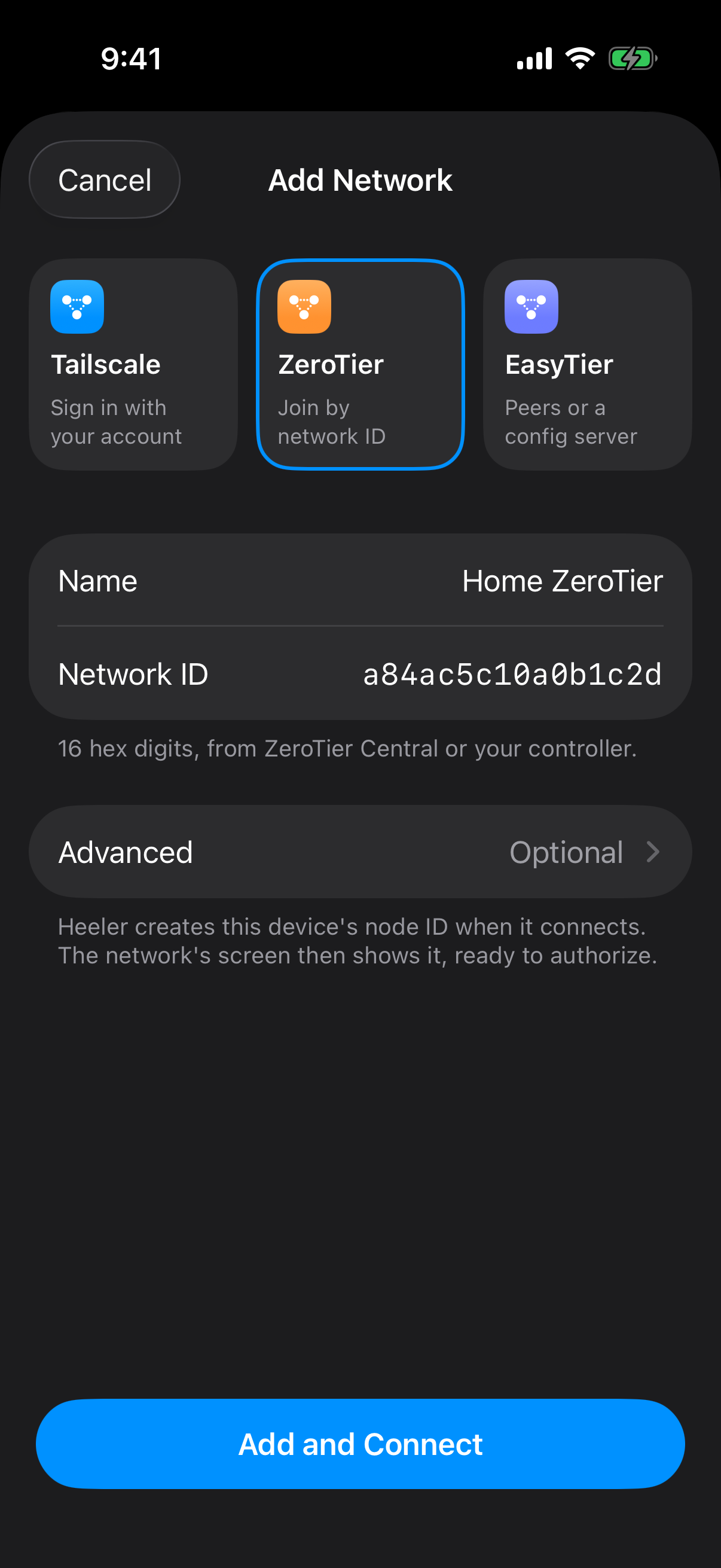 |
| Leave Advanced blank and tap Continue to Sign In. Tailscale setup | Enter the network ID and tap Add and Connect. ZeroTier setup |
| EasyTier Network | EasyTier Config Server |
|---|---|
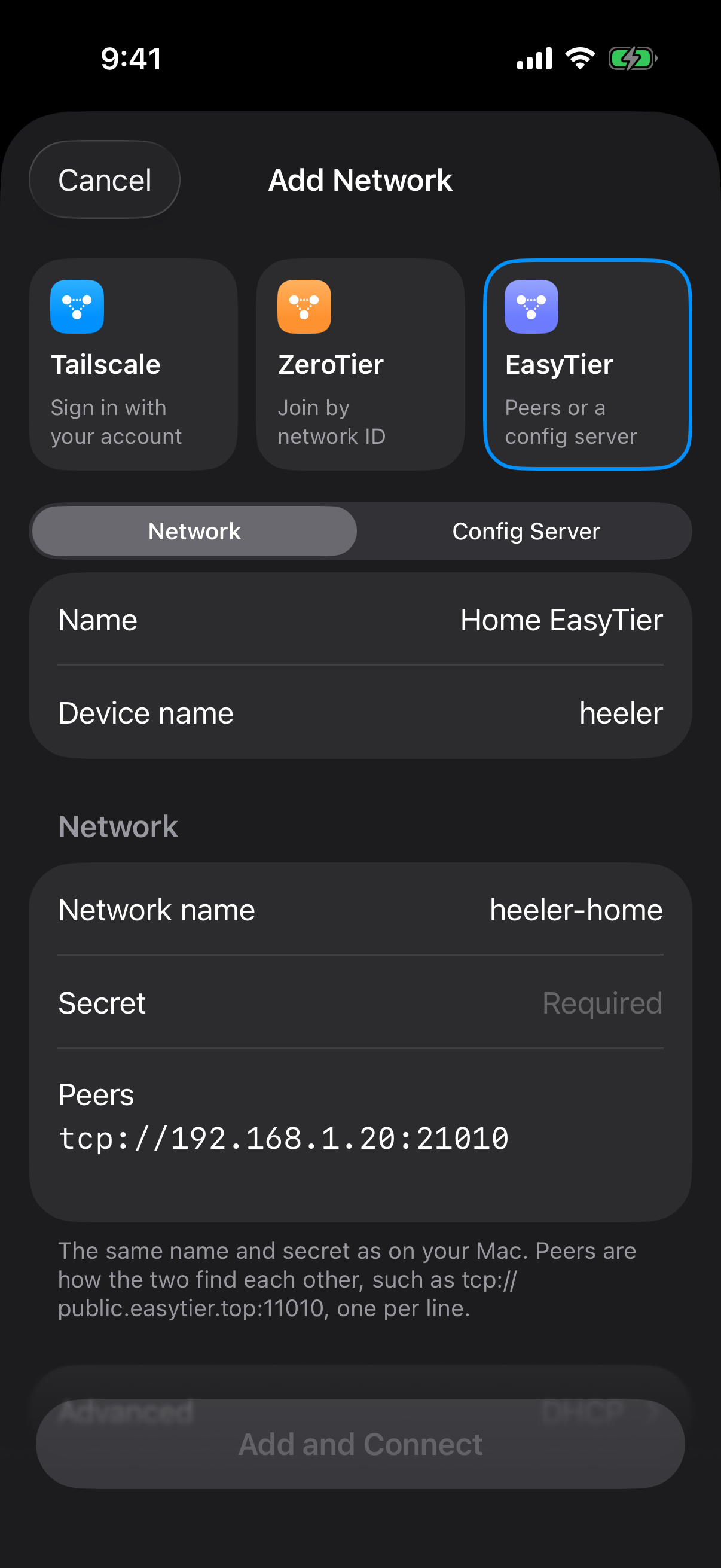 | 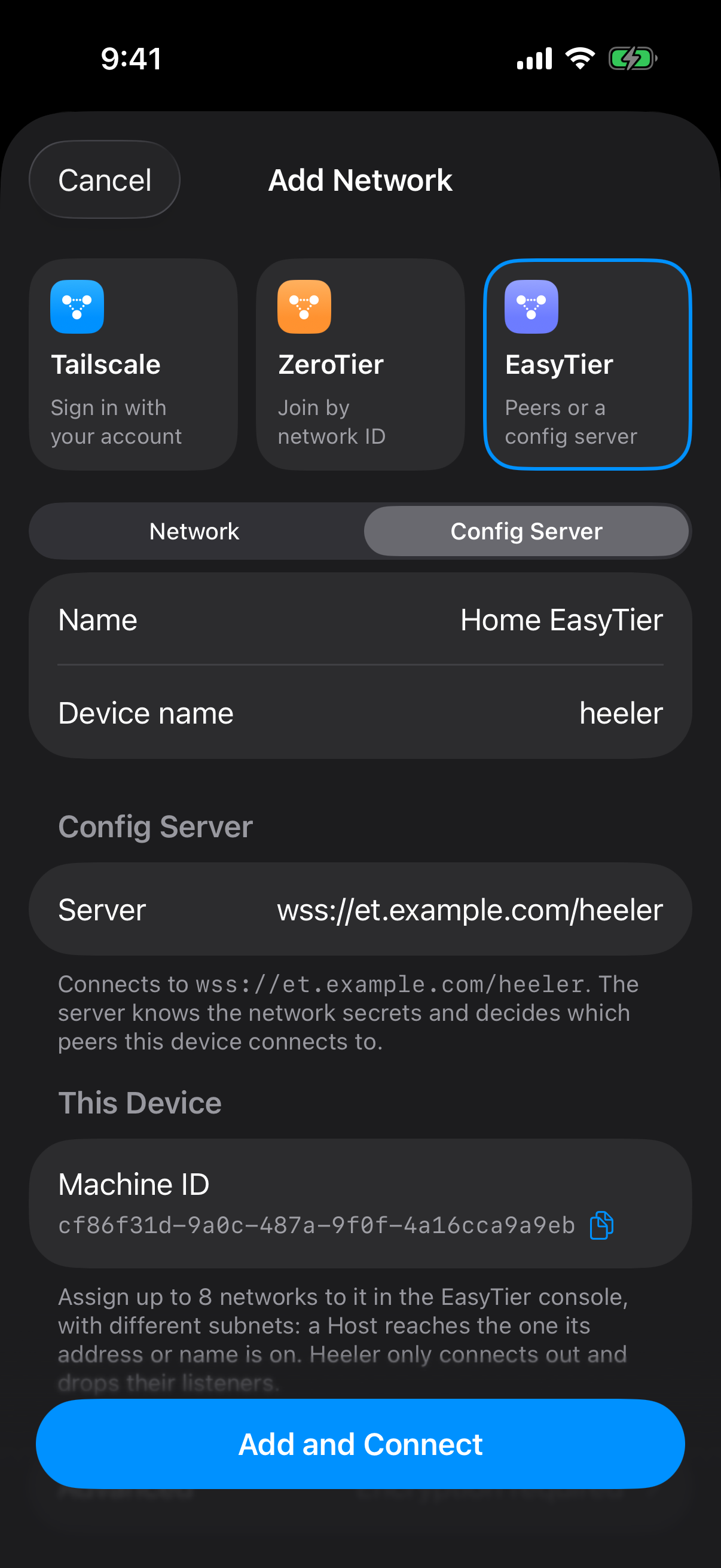 |
| Enter the Mac's network name and secret, and add its peer address. Network setup | Enter the server URL, then assign a network to the Machine ID. Config Server setup |
The values shown are examples.
Prepare the Host
Do these steps on the Mac that runs herdr, signed in as the account Heeler will use.
-
Install and start herdr and open the session you want.
-
Turn on System Settings > General > Sharing > Remote Login and allow your account (Apple's guide). Keep the Mac awake.
-
In Terminal, note your username, check herdr, and read the Mac's SSH fingerprint so you can compare it in Heeler later:
Terminalid -un herdr --version ssh-keygen -lf /etc/ssh/ssh_host_ed25519_key.pubIf Heeler shows a different key type, read that type's
.pubfile in/etc/ssh/instead. -
Pick how Heeler signs in. For Device Key (recommended), go to Heeler > Hosts > Add Host, choose Device Key, tap Copy authorized_keys Line, then cancel the form. Get the line onto the Mac (for example with Universal Clipboard) and run:
Terminalmkdir -p ~/.ssh echo 'PASTE_THE_LINE_HERE' >> ~/.ssh/authorized_keysFor RSA Key, do the same with Copy RSA Public Key. For Password, use your Mac password. A key from pairing also works.
Connect from Heeler
Come here from your provider guide once the Mac and Heeler are on the same network.
- Open Hosts and tap Add Host. Under Routes, tap Add Route, set Network to your saved network, fill in Address and Port, and tap Save. For Tailscale and EasyTier, you can instead open the network in Settings and tap Add next to the Mac; this pre-fills the route. (Direct means Heeler does not use the overlay network.)
- Back in Add Host, fill in the remaining fields below and tap Save.
- Tap Trust only if the fingerprint matches the one from the Mac. If a check fails, fix it and tap Run Checks Again.
| Field | Value |
|---|---|
| Name | Any label for this Mac |
| User | Your Mac username (from id -un) |
| Network (in Route) | Your saved overlay network |
| Address (in Route) | The Mac's IP address on the network, with no port or /24-style suffix |
| Port (in Route) | 22, unless your guide says otherwise |
| Jump Host (in Route) | Leave blank |
| Authentication | The sign-in method you picked |
| herdr Session | The session name, or blank for the default |
To fill in the address on the route page, Tailscale offers Choose from Tailnet… (keep IP Address selected) and EasyTier offers Choose from Network…. For ZeroTier, copy the Mac's IP address from ZeroTier Central.
Verify the connection
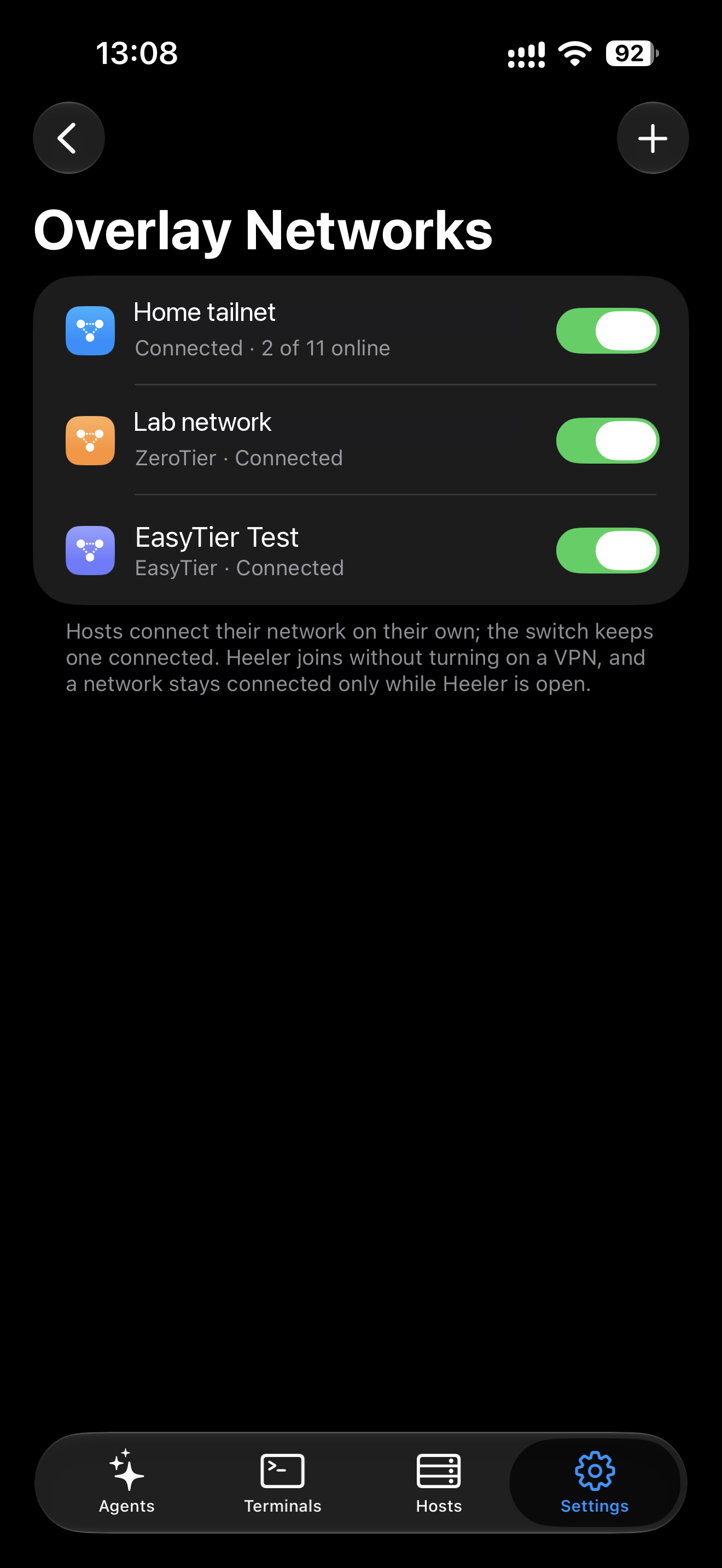
Connected here means Heeler has joined the network, not that a Host is using it. Follow the checks below to verify the Host's route. Network names have been anonymized; you only need the network you chose, not all three. Tap the image to enlarge it.
- The network shows Connected in Settings > Overlay Networks.
- Open the Host from Hosts and check which route is marked In Use under Routes. Confirm it uses the overlay network you are testing. If another route wins, this connection does not verify the overlay route. See which route is in use.
- The Host checks pass and the session's Agents or Terminals load.
- In a New Terminal,
pwdprints a folder on the Mac. Use a new terminal for tests, not an Agent's terminal. - Turn off Wi-Fi on the phone and repeat over cellular, checking In Use again. Another available route, such as a Jump Host or a different overlay network, can still win.
- Leave Heeler for more than 20 seconds, then come back. The Host and terminal reconnect; check In Use again to confirm which route reconnected. (Heeler disconnects from the network while you're away; it isn't an always-on VPN.)
Troubleshooting
| What you see | What to do |
|---|---|
| No Overlay Networks in Settings | Update Heeler; your version doesn't have this feature yet. |
| Not signed in, Needs sign-in, or Signed out (Tailscale) | Tap Sign In and finish in the browser. |
| Waiting for approval (Tailscale) | Approve the device in the Tailscale admin console. |
| Waiting for authorization (ZeroTier) | Authorize Heeler's device in ZeroTier Central. |
| Waiting for a network (EasyTier Config Server) | Assign a network to Heeler's Machine ID in the EasyTier console. |
| Network is connected, but SSH times out | Check the route's Network, address, and port. Make sure the Mac is awake and Remote Login is on. |
| SSH login fails | Check the username, Remote Login access, and the key or password. |
| SSH works, herdr checks fail | Read the failing check. Usually herdr isn't installed for this account or the session name is wrong. |
| Network turns back on after you switch it off | A Host route is using it. To keep it off, change that route's Network or remove the Host. |
Last checked on 2026-10-09 on macOS.