
See Usage and Usage Limits
Check Claude Code and Codex Usage Limits on iPhone or iPad, with Home Screen and Lock Screen widgets for account limits and reset times.
Usage also shows how many tokens each Host's Agents used over the last 30 days, with what those tokens would cost at API list prices. The estimated cost is not your subscription bill.
You need a macOS or Linux Host with the Heeler plugin 0.7.0 or newer.
Set up the Host
Run on: Mac or Linux
Install or update the plugin:
herdr plugin install ZingerLittleBee/Heeler --ref plugin --yesIf Usage asks you to use an Agent once, start any Agent on that computer, or restart herdr, then pull to refresh.
Read Usage
Tap Usage in the tab bar (or choose Usage at the top of the sidebar on iPad).
- All Hosts at the top right (or in the sidebar on iPad) adds up every Host. Choose one Host to see only its figures.
- Switch between Est. Cost and Tokens, and between Today, 7 Days, and 30 Days.
- Usage Limits shows each program's tightest window and when it resets. Tap Details for every window. Limits always belong to one Host's signed-in account, so they are never added up.
- Touch and hold the chart, or tap a day in the calendar, to read that day.
- Pull down to refresh.
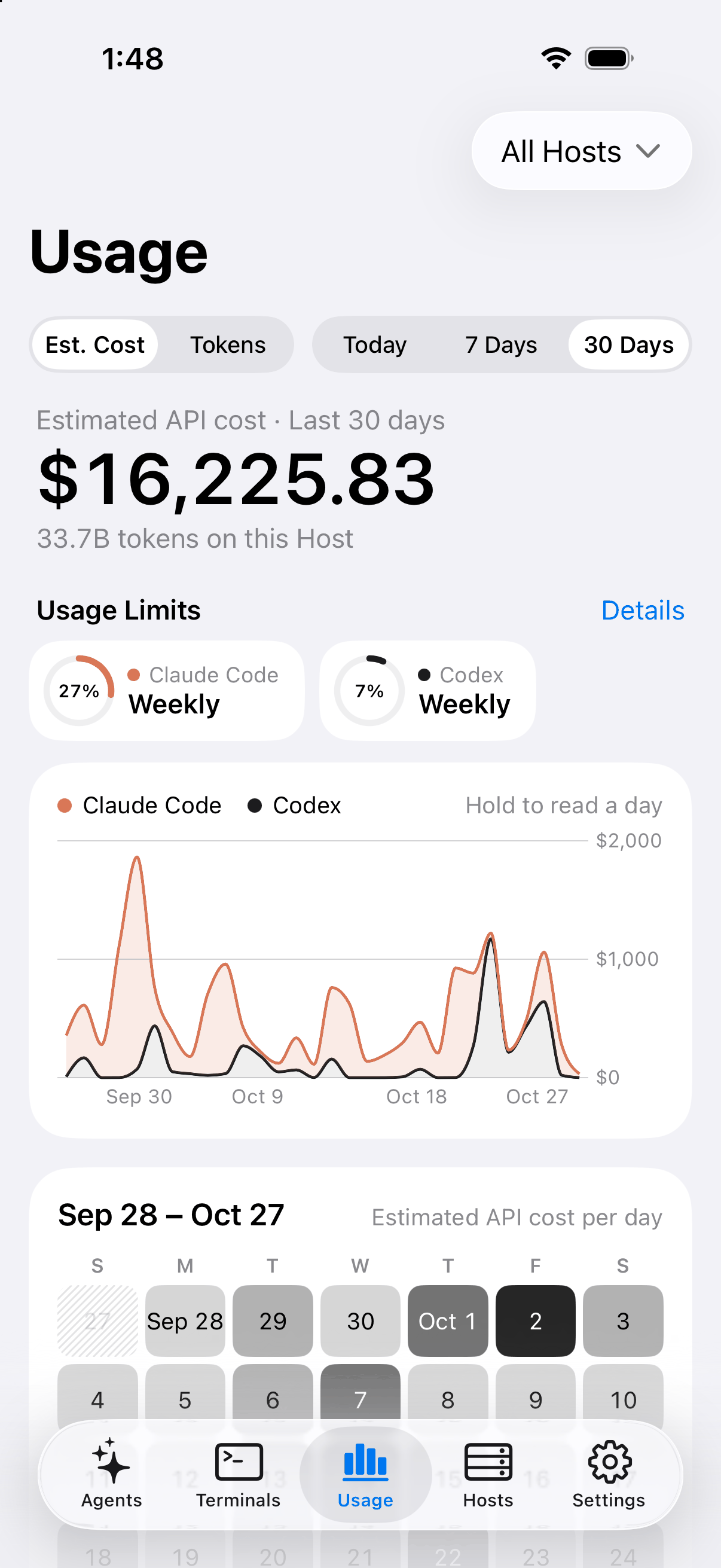
The estimated cost is not a bill. It prices the tokens this Host's Transcripts still hold.
Turn on Claude Code limits
Claude Code limits are off until you turn them on for each Host. Tap Details beside Usage Limits, then turn on Claude Code limits. The plugin asks Claude Code on that computer for your plan limits; Heeler never handles your sign-in.
Turn Usage off
If you don't need Usage, turn off Usage in Settings. The tab and each Host's Usage section go away, Heeler stops reading usage from your Hosts, and Usage widgets clear their figures. Turn it back on at any time.
Add Claude Code Accounts
If a Host runs more than one Claude Code subscription, each signed in from its own config directory (for example, Agents started with CLAUDE_CONFIG_DIR=~/.claude-2), add each directory as an Account so Usage keeps them apart. Accounts need the Heeler plugin 0.8.0 or newer on that Host; the install command above also updates it.
Every Host starts with the Default Account: the directory Claude Code uses when herdr starts it. Each Account you add gets its own Token Usage, listed under Claude Code. With Claude Code limits on, it also gets its own Usage Limits and its own line in the Usage Limits widget.
- In Usage, choose one Host. If Heeler found directories that look like Claude Code's, a notice such as Found 1 Claude Code directory appears; tap it. Otherwise tap Details beside Usage Limits, then Claude Code Accounts.
- Under Suggestions, tap Add to count a directory, or Ignore to stop suggesting it. Heeler suggests directories that a running Agent uses or that sit in your home folder, and counts none until you add it.
- To add a directory Heeler didn't suggest, tap Choose Another Directory… and pick it on the Host. It must hold a Claude Code sign-in or Transcripts: a
.claude.jsonfile or aprojectsfolder.
A new Account counts from the next refresh. A Host can have up to four Claude Code Accounts, Default included; at four, remove one to add another.
Tap an Account to rename it. Names appear in Usage, Usage Limits, and widgets, so each Account on a Host needs its own. Clear the Default Account's name to call it Default again.
To remove an added Account, swipe left on it or touch and hold it, then tap Remove and Remove Account. Its Token Usage and Usage Limits stop showing; the directory and its sign-in stay on the Host. The Default Account can be renamed but not removed.
If herdr itself starts Claude Code with CLAUDE_CONFIG_DIR, ~/.claude no longer counts toward the Default Account. Heeler suggests it instead, so add it if you still use it.
The Accounts are saved on the Host, so every device you connect from shows the same list.
Add a widget
- Touch and hold an empty spot on the Home Screen, then tap Edit > Add Widget.
- Search for Heeler and pick a widget and size:
- Usage: estimated cost or tokens for today, 7 days, or 30 days, on All Hosts or one Host.
- Usage Limits: one Host's windows and when they reset.
- Tap Add Widget, then touch and hold the widget and tap Edit Widget to choose the Host, what it shows, or the program. Automatic shows the program closest to its limit.
Both widgets also come in Lock Screen sizes. Touch and hold the Lock Screen, tap Customize > Lock Screen, then tap the widget area to add them.
| Home Screen | Lock Screen |
|---|---|
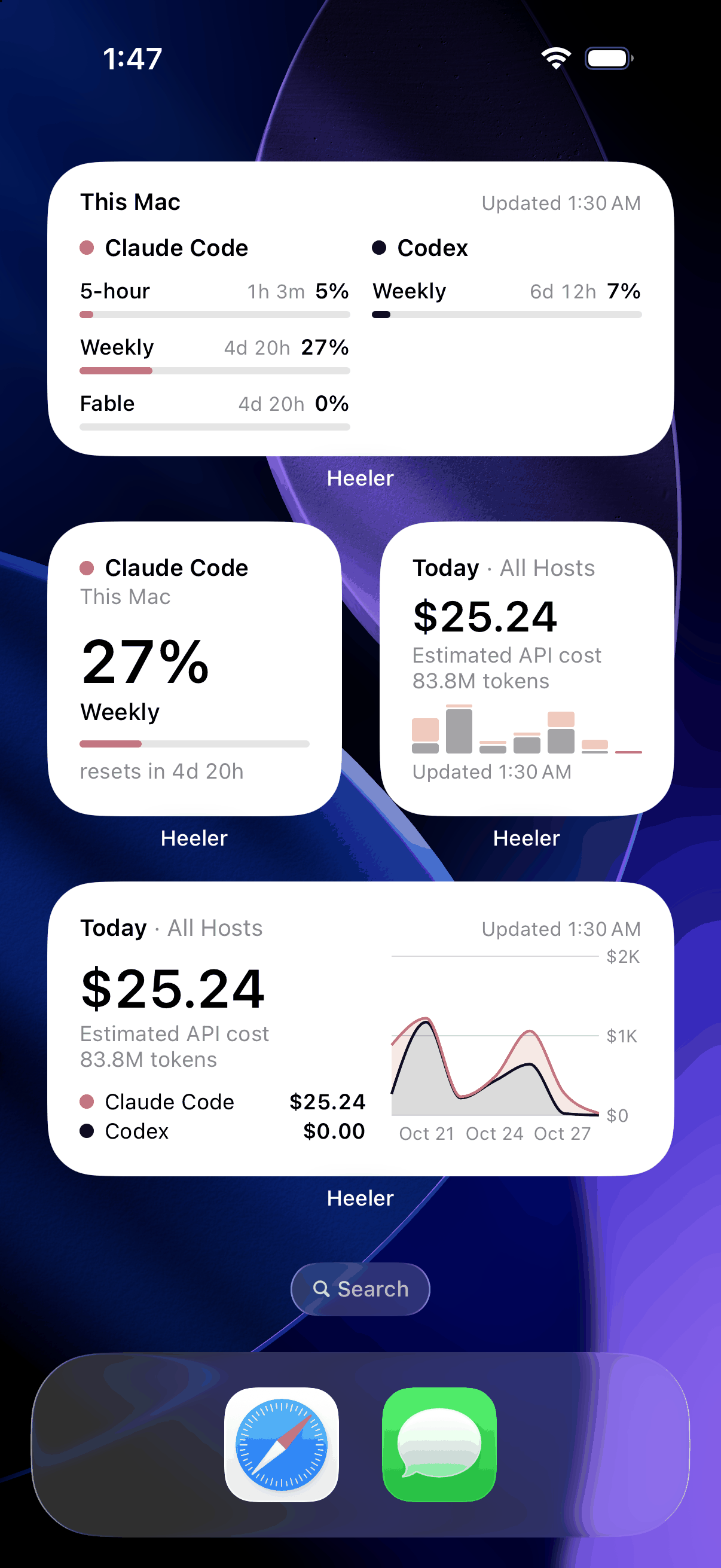 | 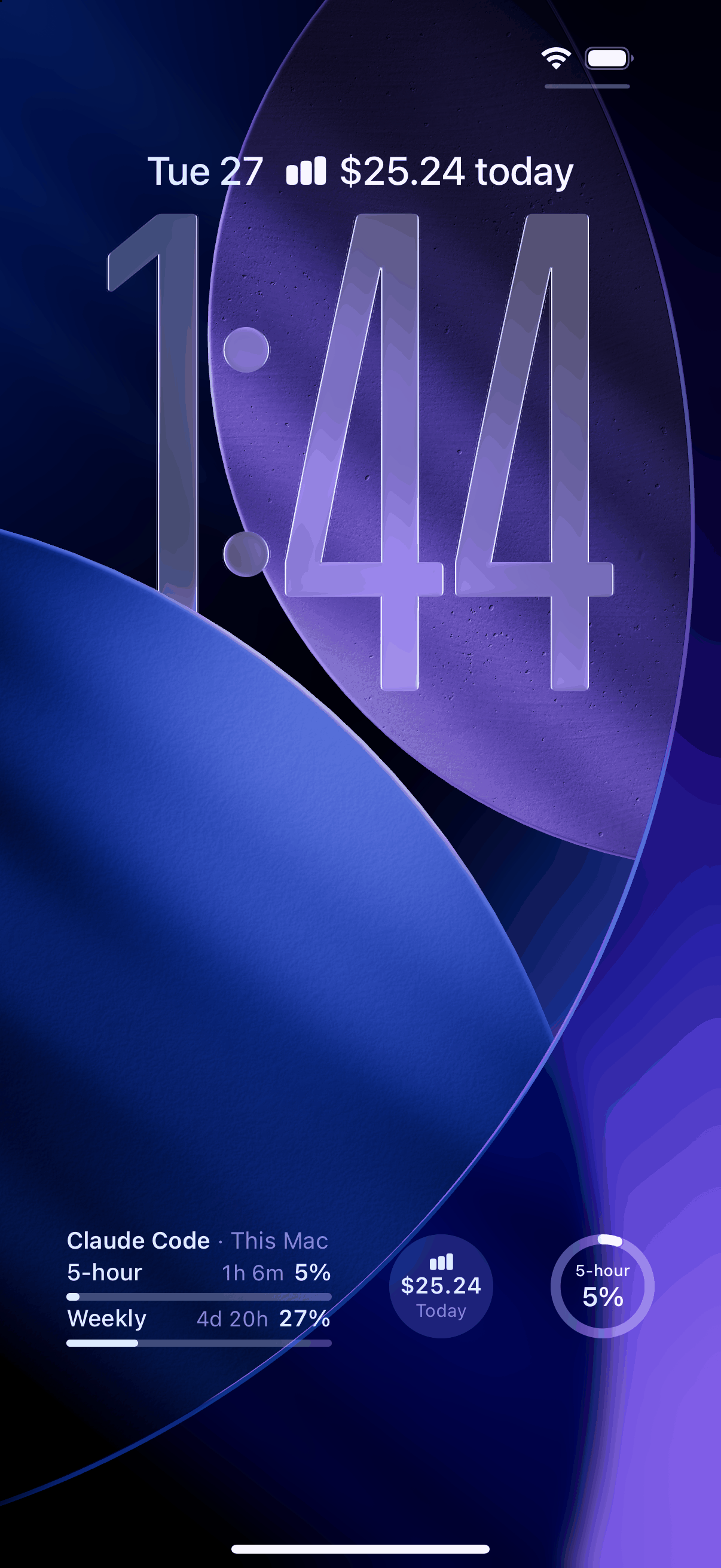 |
Tap a widget to open the same figures in Usage.
When widgets update
- When you open Heeler, it reads each Host again if its widget figures are 15 minutes old or more. You don't need to open Usage.
- While Heeler is closed, iOS lets it read in the background now and then, at most every 30 minutes. Turn this on in Settings > General > Background App Refresh. Low Power Mode, or swiping Heeler away in the app switcher, stops it until you open Heeler again. Background reads connect only over Direct or Jump Host routes; Hosts reached only through an Overlay Network update when you open Heeler.